Pick a native Google Sheets connector when you need recurring, automated certificates; export a CSV and run a merge if you only need a one-off, human-reviewed batch. Those two options are the practical winners for most organizers. Each workflow trades off setup time, maintenance, design control and delivery options, so the deciding question is simple: will you issue automatically as rows arrive, or do you need a vetted, single release? Below I walk through the canonical sequence you'll follow: prepare the sheet, pick a route, build a template, map data, deliver and store files, and run a pilot. I also flag quota limits, delivery traps and simple tests to avoid common mistakes.
4 methods form the backbone of the canonical how-to sequence you will follow to turn spreadsheet rows into certificates: prepare the sheet, choose the generator route, map data to placeholders, produce and deliver files, and track or re-send as needed. That sequence applies whether you are issuing a single batch, automating ongoing credentials, staying strictly inside Workspace, or building a fully custom developer pipeline.
1. Prepare the sheet
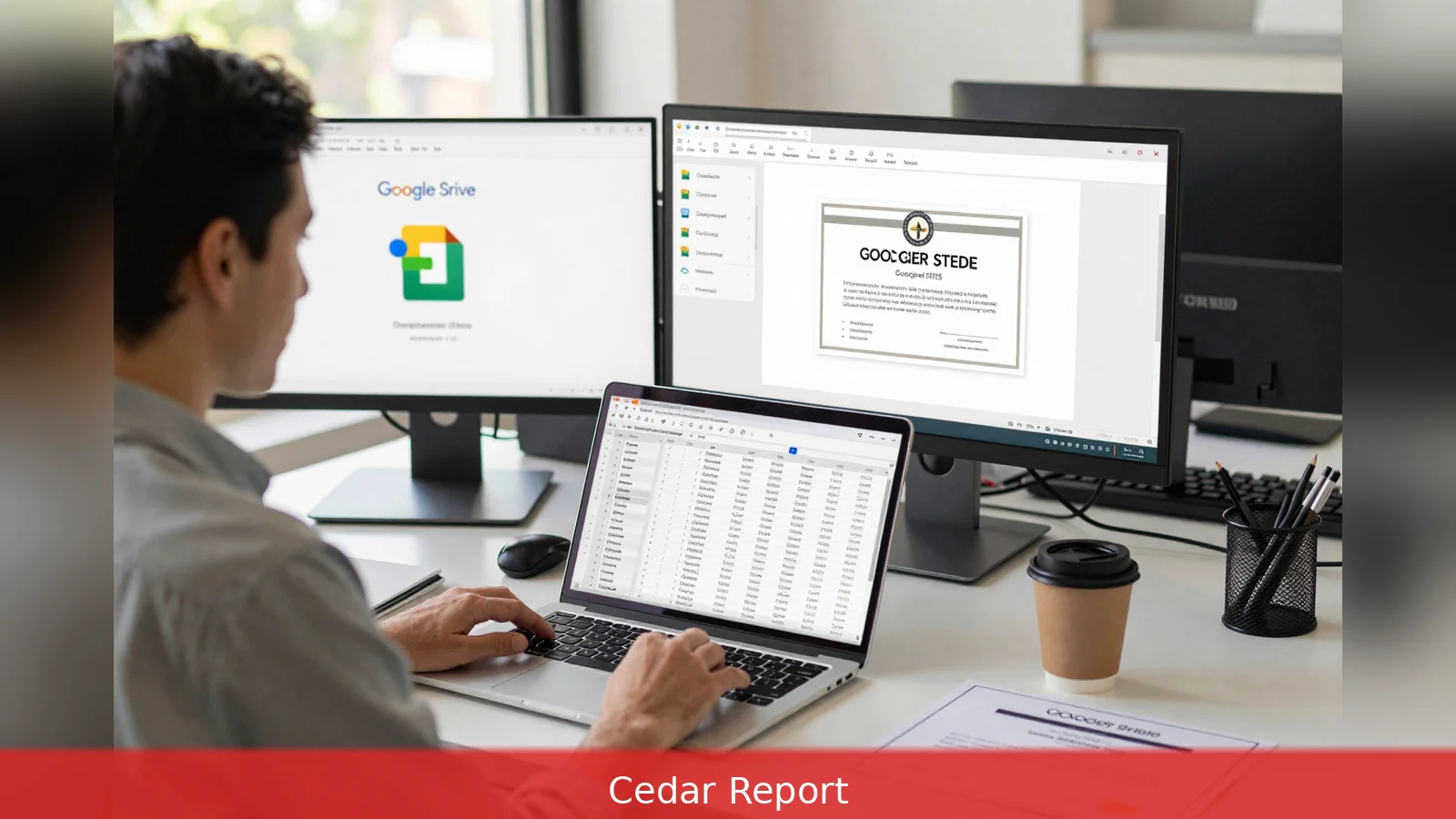
First, validate and normalise your Google Sheet so the generator can read it without surprises. Use one recipient per row and put column headers in row 1. Include at least two required columns: recipient full name and recipient email. Add any other fields you plan to display on the certificate, such as course title, completion date, score, certificate ID, or hours completed.
Avoid merged cells and nonstandard formatting. If your template expects a single name field but your data has separate first and last name columns, combine them before the merge or use the generator’s merge function. Save a copy of the sheet and include a test row so you can preview output before sending a real batch. For one-off workflows export that copy as CSV, XLS, or XLSX; for continuous automation keep the live Google Sheet and make sure permission settings allow the generator service to read it.
2. Choose the workflow that fits your scale and skills
Second, pick one of four practical workflows. Each route has clear trade-offs: setup time versus maintenance, design control versus convenience, and who handles email delivery.
Option one is a native Google Sheets connector inside a certificate platform. This is the least hands-on for recurring issuance. When new rows appear the platform maps columns to certificate fields, generates a credential, sends it to the recipient, and records delivery.
Certifier's documentation frames this path as the simplest for continuous issuing, and many hosted services also accept CSV, XLS, and XLSX for one-off batches.
Option two is CSV upload for single batches. Export your prepared sheet to CSV and import it into a certificate tool that supports batch merges. This is ideal when you want a human review step before sending or you only need to run one campaign.
Option three keeps everything inside Google Workspace by using Google Apps Script plus Google Slides. With a Slides template the script replaces placeholders, converts slides to PDF, and sends attachments via Gmail. This route gives tight control over layout and sending, but it requires coding and attention to Gmail and Apps Script quotas.
Option four is multi-app automation using hosted platforms or self-hosted tools. Zapier, Make, and n8n let you trigger certificate issuance from external events, add conditional logic, and route outputs across an LMS, CRM, or file storage. Automation templates for n8n commonly copy a Google Slides template, replace placeholders, convert to PDF, save to Drive, and email via Gmail. Finally, the developer route uses APIs to generate certificates, publish verification pages, sign documents, and deliver through your mail infrastructure when you need bespoke workflows or high throughput.
3. Build the design, map, preview, and deliver
Third, design the certificate in the tool you will use to create PDFs, or build a Google Slides template if you plan to use Apps Script or automation flows that copy Slides. Add clearly named placeholders for each dynamic field. Placeholder syntax is tool specific; common examples include {{Name}} or [NAME]. Keep layouts simple for reliable rendering when converting to PDF. Include your organisation’s logo and any static text.
If you expect recipients to print certificates, use high-resolution assets and check bleed and margins. For CSV-based merges ensure your column names match the template fields or that the platform lets you map them in the UI. Preview several rows, including your test row, to verify font sizing and line breaks. Long names and multi-part titles are the usual troublemakers, so check how the template handles wrapping and scaling.
Design-first tools can help when appearance matters. Canva Pro offers a Google Sheets integration for merges when visual flexibility is paramount. Tools such as PostSheet and other document-generation services advertise a no-code flow: link a Google Sheet, map variables, generate PDFs, and send personalised emails.
Fourth, connect the generator to your Google Sheet or import the CSV, then map each sheet column to the corresponding placeholder in your template. Use the platform preview feature and check at least three varied rows to catch format and spacing issues. Decide whether you will generate PDFs only for download and printing, email certificates as attachments, or publish credentials to a verification page.
Many hosted certificate platforms include built-in emailing and delivery tracking, and let you save certificates to Google Drive or another file store. If your flow uses Gmail via Apps Script or an automation node, remember the sending account’s daily and per-minute limits and the API quotas for Apps Script. If you need conditional sends, use filters in Zapier, Make, or n8n to send only rows that meet criteria such as a completion flag or minimum score.
Where the automation is part of a larger workflow, route certificate issuance off events like a course completion entry from an LMS. Multi-app platforms are useful when issuance must join data across systems, for example appending CRM fields to the certificate or saving a copy into a shared Drive folder for compliance.
4. Store, verify, track, manage limits, and run a pilot
Fifth, keep an auditable record. Store generated PDFs in a dedicated Drive folder or in the certificate platform’s repository so you can retrieve them later. If you need public verification, publish credentials to a verification page or host an endpoint that accepts a certificate ID. Track deliveries and bounces: most platforms provide delivery logs and open rates. Automation platforms surface failed runs.
Include a re-send path. Keep a filtered view in the sheet for rows flagged "not delivered" and re-run the merge for that subset. For compliance or continuing education tracking preserve certificate IDs, issuance dates. Credit hours in your sheet. That way reporting and audits use the same canonical data source you used to issue the certificates.
Sixth, plan for quotas and upkeep. Tools that send email via a Gmail account or use Apps Script can hit Google-imposed limits. For continuous, high-volume issuance a native integration or a hosted platform that sends email on your behalf reduces the risk of hitting per-account sending limits. No-code connector platforms and hosted certificate services often require paid plans for higher volumes, custom domains, or white-label verification pages.
The maintenance burden varies. Native integrations and hosted platforms need minimal day-to-day attention. Apps Script solutions and self-hosted automations require periodic maintenance, credential updates, and monitoring for API changes. If you build an API-driven generator, include idempotency keys and error handling so repeated runs don't create duplicate certificates.
Seventh, pick the trade-offs that matter and run a pilot that exercises the full flow. If you want no maintenance and immediate issuance when a row is added, pick a platform with a native Google Sheets connector and set it to auto-issue. If you want to vet every certificate before release, export a CSV and run a single batch. And if you need conditional routing, choose a multi-app automation and build filter nodes for the business logic. If you have developer resources and require bespoke verification, signature workflows, or high throughput, put in place an API-based generator and add idempotency and retry logic.
Across all routes keep one row of test data and run a test campaign that exercises upload, mapping, PDF rendering, emailing, and the re-send flow before processing live recipients. N8n templates and automation recipes commonly require you to supply the Sheet ID, Slides template ID, and destination folder ID. That makes the pilot both repeatable and auditable.
Tool notes to match the workflow: Certifier documents a native Google Sheets connector as a simplest continuous path. PostSheet and similar document-generation tools target a no-code experience that links a Google Sheet, maps variables, produces PDFs, and sends personalised emails. Canva Pro supports merges for design-forward templates. Automation platforms including N8n, Zapier, and Make provide recipes when certificate issuance is one event in a larger workflow.
Operational checklist. First, validate and normalise your sheet. Second, choose one of the four workflows based on recurrence and technical resources. Third, create or import a certificate template. Fourth, map placeholders to columns and preview outputs with test rows. Fifth, set delivery and storage options. Sixth, monitor delivery logs and quota limits. Seventh, maintain the automation or script as needed.
I'll save you the trouble of hunting a starting point: prepare a sanitized copy of your Google Sheet with headers in row 1, one test row, and two required columns labelled for name and email. Then choose a trial workflow and run the test row through preview and send so you can validate rendering, delivery, and storage before processing live recipients.
Related Articles
- Samsung Galaxy S26 Ultra vs Galaxy A37: 200MP or 50MP?
- 10 Steps to Prove You're a Builder in Tech Interviews
- Egypt one win from World Cup round of 32 vs Iran
Sanitize sheet, keep a test row with name and email, then use a native connector for recurring or a CSV merge for one-offs.
This article was created with AI assistance.


