
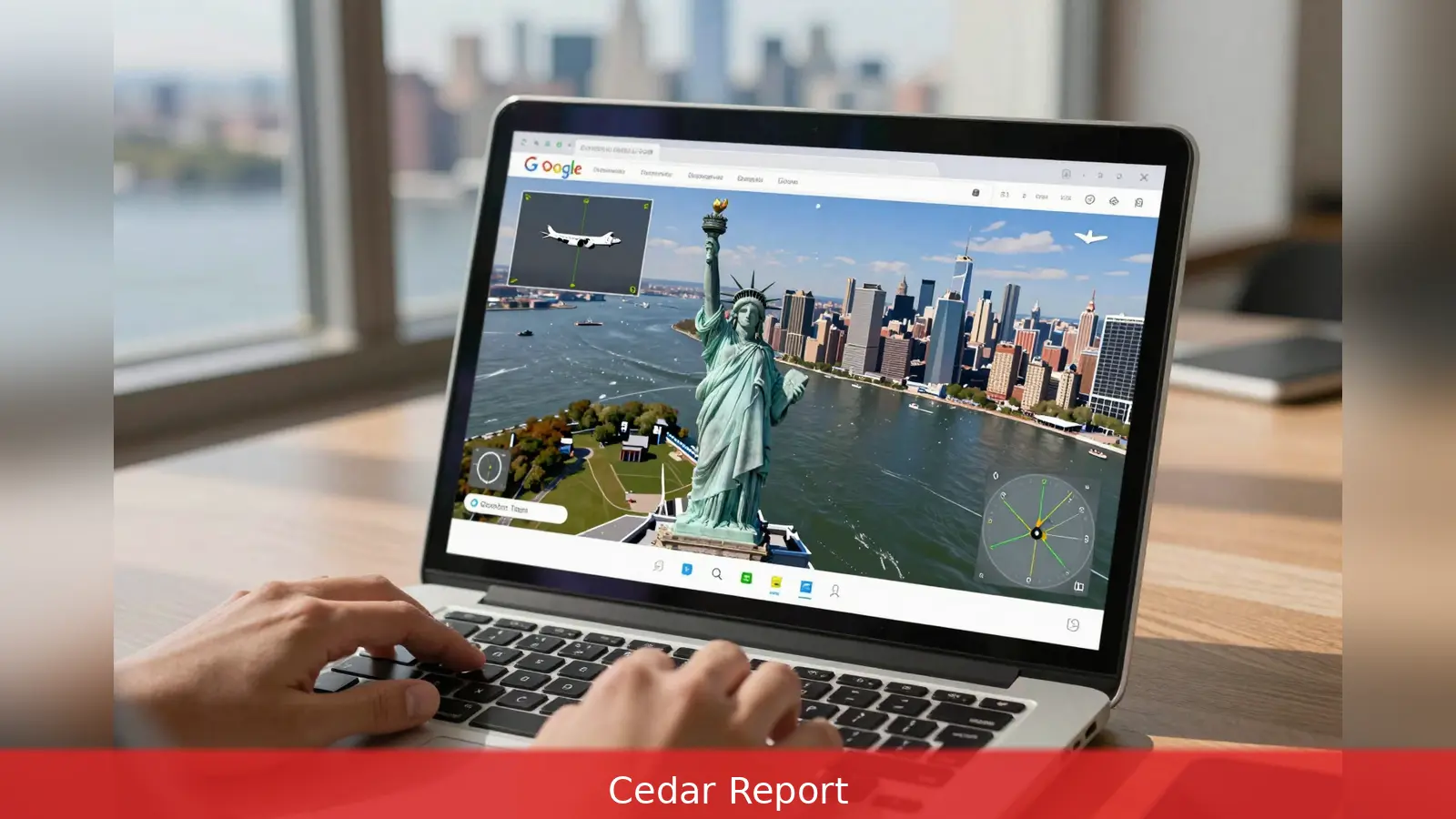
Want a quick aerial tour without installing software? Google Earth's flight simulator now runs in any modern browser, so anyone can open the site and take off from virtually any point on the planet. Google rolled out the web flight simulator in June 2026 and published controls and a help FAQ for new pilots. The change is part of a broader web update that brings professional desktop features into the browser, including new import formats, elevation profiles and additional data layers, giving casual pilots immediate, low-friction access to global satellite imagery.
You can now launch the flight simulator from the Google Earth website without downloading software, because Google has integrated the simulator into the web interface as a standard site option.
1. What changed, and why it matters
Google has taken a feature that began as a hidden Easter egg in the Google Earth desktop client in 2007 and made it broadly accessible on the web. The company announced the web availability from its Google Earth account in mid-June 2026 and published a help page and FAQ that list the web controls and explain the feature's experimental status. That shift is part of a wider push to bring professional desktop tools into the browser, so users can access capabilities such as new import formats, elevation profiles, and additional data layers without the desktop app.
The practical consequence is simple: any user with a supported browser can now fly over Google Earth’s global imagery and 3D terrain. The web rollout dramatically increases the simulator’s audience while preserving the original intent. This is an exploratory tool aimed at casual use rather than a substitute for high-fidelity flight training or commercial simulator software.
2. How to start a flight in five steps
Start by opening the Google Earth website in your browser. The web documentation and multiple hands-on accounts describe a short site sequence that places your aircraft where you want it and launches the simulator.
First, click the Explore Earth button in the top-right corner of the web page to enter the interactive view. Second, use the search bar to load the geographic area you want to fly over so the simulator positions your craft near an interesting target rather than a featureless ocean. Third, open the Tools menu on the site’s top menu bar and choose Flight Simulator, which appears as the last option in that menu. Fourth, the simulator launches and spawns an aircraft at the loaded location.
Fifth, switch the basemap from Map to Satellite for the most photorealistic view, so the aircraft flies over Google Earth’s satellite imagery and 3D terrain.
Worked example: if you want to start over the Statue of Liberty, search for "Statue of Liberty" in the site search before opening Tools. That places the aircraft close to the landmark so you can immediately zoom in and circle the island from the air.
The web simulator keeps controls intentionally simple and supports mouse and keyboard input. Google’s online control guide lists mouse or arrow keys to control Pitch and roll, and Page Up and Page Down to increase and decrease thrust. That mapping keeps the barrier low for new pilots while still requiring a short learning curve.
Expect a few predictable moments during early flights. Reviewers who tried the web release describe the controls as forgiving but still challenging. It's easy to lose control and crash. When a crash happens the simulator pauses and offers a reset option that returns the aircraft to a safe altitude so you can try again.

Practical tips to reduce frustration: if you prefer a steadier approach while learning, use the mouse for finer adjustments because the mouse offers smaller, continuous inputs compared with the binary feel of arrow keys. Use Page Up and Page Down sparingly to manage thrust so you don't overspeed or stall. If the view becomes disorienting after a crash, accept the reset option to return to a safe altitude, then slow down and trim your inputs before attempting a landing or tight turn.
The web version preserves the original simulator’s strengths and its limits. Its chief advantage is immediate, low-friction access to Google Earth’s mapping data and near-global coverage without installing software or buying a commercial simulator. You can fly to almost any location in Google Earth's imagery database, zoom in on landmarks, preview airports, and get aerial views of landscapes and cities that are otherwise hard to reach.
At the same time, Google positions the feature as an Exploratory toy rather than a training tool. The company’s guidance stresses that the simulator is designed for casual exploration rather than high-fidelity aerodynamic training. The web implementation focuses on access and planetary scope rather than detailed aircraft systems. There are no missions, scoring systems, or progression mechanics in the current web release.
Observers contrast Google Earth’s simulator with gameplay experiences such as Microsoft Flight Simulator, which model aircraft systems and flight physics in much greater depth. Historically, the desktop Google Earth client offered quick keyboard shortcuts to open the simulator and let users choose between a high-performance jet and a light propeller plane. The web rollout retains the spirit of those options through straightforward aircraft choices and simple controls, but it doesn't attempt to replicate the full fidelity of a dedicated flight sim.
Google calls the web flight simulator an experimental web feature, and testers noted occasional bugs or visual glitches during early use. If you encounter wonky moments, try these steps: reload the page, switch the basemap to Satellite, or reposition your starting point with the search box and relaunch the simulator. The reset-after-crash option is the fastest way to recover from a lost-control situation and resume exploration.
Small interface details matter. The web documentation and hands-on reports highlight several points new pilots should remember. First, pick a clear point of interest using the search box before launching the simulator so you aren't placed over an empty or featureless area. Second, change the basemap to Satellite for the most photorealistic flying experience. Third, if you want a steadier ride while learning, prefer mouse controls for finer inputs and treat Page Up/Page Down as slow throttle adjustments. Fourth, expect the occasional visual glitch because the feature is labelled experimental on Google’s help pages.
Worked scenario: to preview an airport approach, search for the airport name, switch to Satellite basemap, then start the simulator and reduce thrust gradually while lining up with the runway. If you misjudge speed or altitude and the simulator pauses after a crash, use the reset option and retry the approach with smaller throttle changes.
Think of the web simulator as a way to scout the planet from above. Use it to check the layout of a city before a trip, to get a sense of a region’s topography, or to spot landmarks and 3D buildings from a new angle. Because the tool taps directly into Google Earth's global imagery and terrain layers, it excels as a quick visual reference and as a playful way to visit faraway places.
Do not use it for pilot training. Google’s documentation and the feature’s design make that clear. If you need deep flight physics, system simulation, instrument training, or accurate aircraft handling, a dedicated simulator such as Microsoft Flight Simulator remains the correct choice.
The web release continues a trend by Google of moving professional desktop features into the browser. Alongside the simulator, the update added support for new import formats, elevation profiles, and additional data layers. That means analysts, educators, and casual users can now access more advanced mapping tools directly in the web interface without reverting to the desktop client.
For everyday users who want a quick aerial tour, the change is mostly about convenience and scale. For power users who depend on advanced desktop workflows, the web additions narrow the gap between desktop and browser, but they don't remove the desktop client entirely for specialist work.
In short,
First, open Google Earth in your browser and click Explore Earth. Second, search for a specific starting point so the aircraft spawns where you want it. Third, open Tools and select Flight Simulator. Fourth, switch to Satellite basemap for the richest view and use mouse or arrow keys with Page Up/Page Down for thrust control. Fifth, use the simulator reset option after a crash to return to a safe altitude and continue exploring.
Related Articles
- 6 Steps to Trade Market-Open Volatility During Planetary Windows
- 10 Steps to Build a Financial Astrology Watchlist
- Direct deposit for Canada Child Benefit: 6 ways to sign up
The simulator now lives in the Google Earth web interface, so you can fly from a browser without the desktop app. Check Google's help page for the control list and the feature's experimental label before you try it.
This article was created with AI assistance.


